Guide
Chrome Web Store Image Sizes & Asset Specs (2026 Cheat Sheet)
Extino Team··4 min read
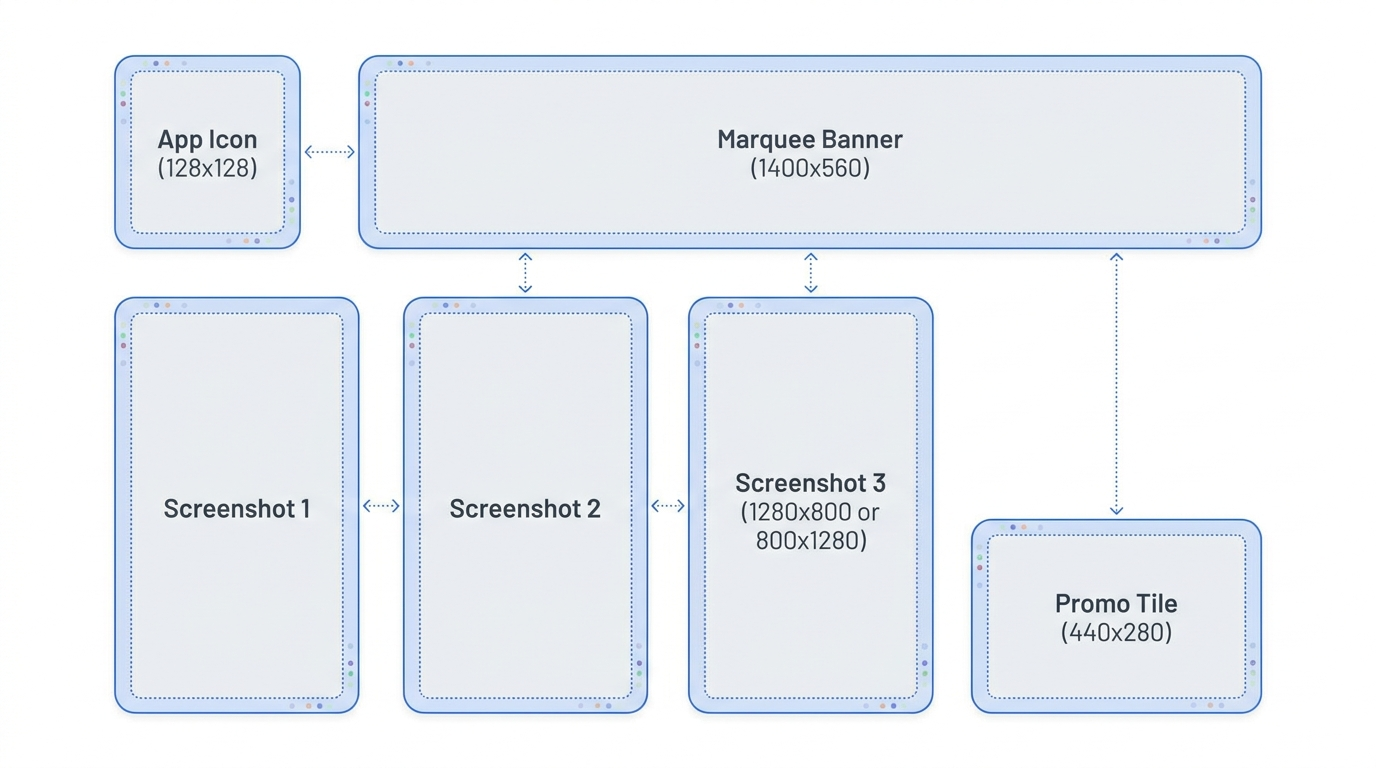
Getting your Chrome Web Store assets to the exact right size avoids upload errors and a blurry listing. Here's the full 2026 reference — bookmark it.
Image assets
| Asset | Size (px) | Format | Required? |
|---|---|---|---|
| Store icon | 128 × 128 | PNG | Yes |
| Screenshot | 1280 × 800 or 640 × 400 | PNG / JPEG | Yes (1–5) |
| Marquee promo tile | 1400 × 560 | PNG / JPEG | Recommended |
| Small promo tile | 440 × 280 | PNG / JPEG | Optional |
Tips: use a square, fully-bleed 128×128 icon (no transparent padding); keep screenshots at a 16:10 ratio; and use the same visual style across all assets so your brand reads as consistent.
Toolbar icon sizes (in your extension)
These live in your extension's manifest.json, not the store listing, but Google recommends shipping all sizes:
- 16 × 16 — favicon / toolbar.
- 32 × 32 — Windows.
- 48 × 48 — extensions management page.
- 128 × 128 — installation and the Chrome Web Store.
Text limits
| Field | Limit | Recommended |
|---|---|---|
| Title | 75 characters | Under 45 (avoids truncation) |
| Short description | 132 characters | Use all of it; lead with the benefit |
| Detailed description | 16,000 characters | Scannable, keyword-rich |
Quick checklist
- 128×128 store icon, square, no padding.
- At least one 1280×800 screenshot (more convert better).
- 1400×560 marquee tile if you want featured placement.
- Title under 45 chars, short description exactly at the 132-char sweet spot.
If sizing and exporting all of this by hand sounds tedious, that's exactly what Extino automates — every asset generated to spec in one click.
Skip the busywork
Extino generates your listing, icons, screenshots, and privacy policy in minutes.